
Extracting respondent emails in Zapier
MetaSurvey sends response data (like question types and answers) as arrays. To use a respondent’s email in later steps like “Create Contact” or “Send Email,” you need to extract it using a small script in Zapier.
Step-by-Step Setup
- Set up your Webhook Trigger
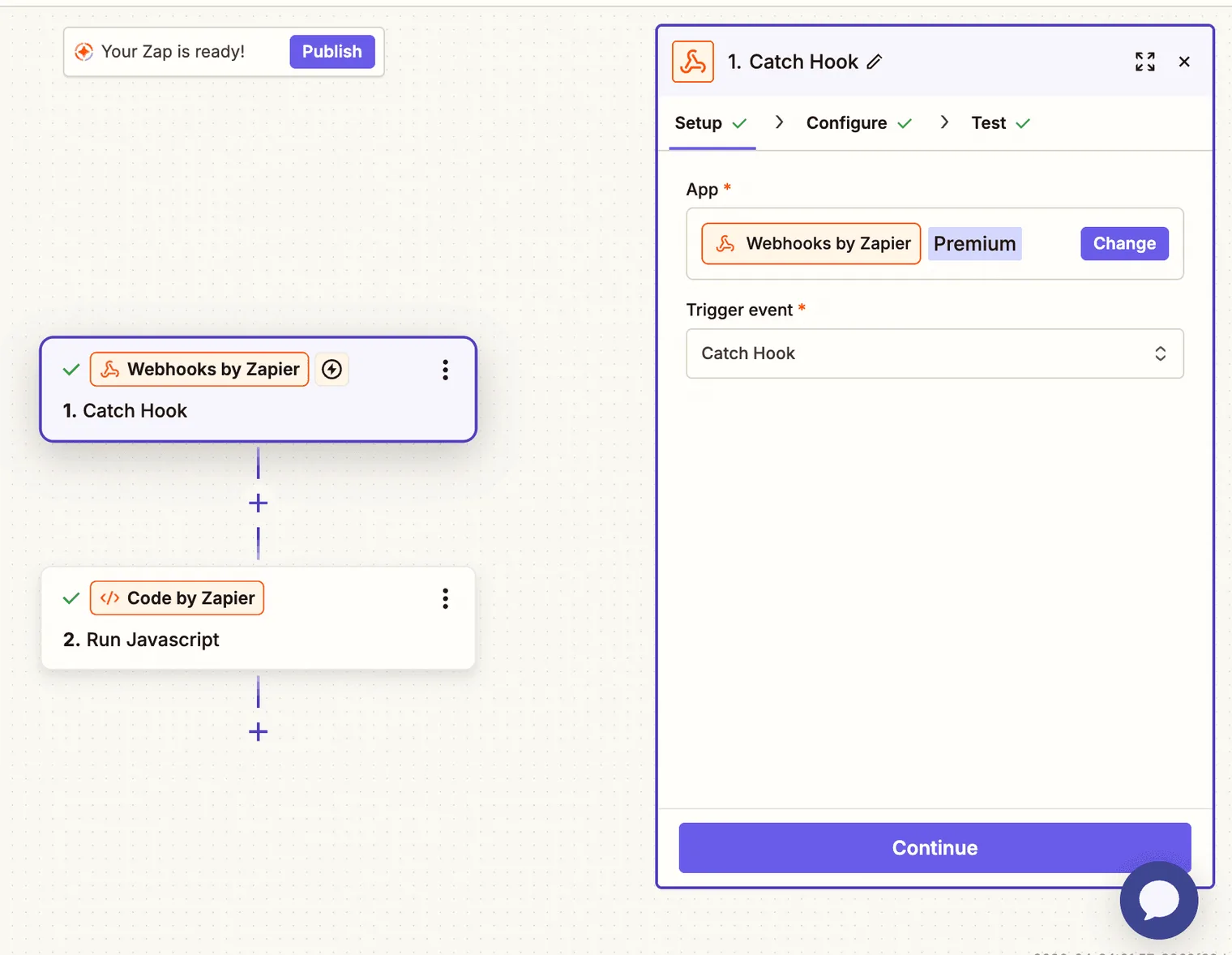
Select Webhooks by Zapier as your trigger and choose Catch Hook. Copy your unique Webhook URL and paste it into your MetaSurvey settings. Send a test response to ensure Zapier receives your data.
- Add the ‘Code by Zapier’ Action
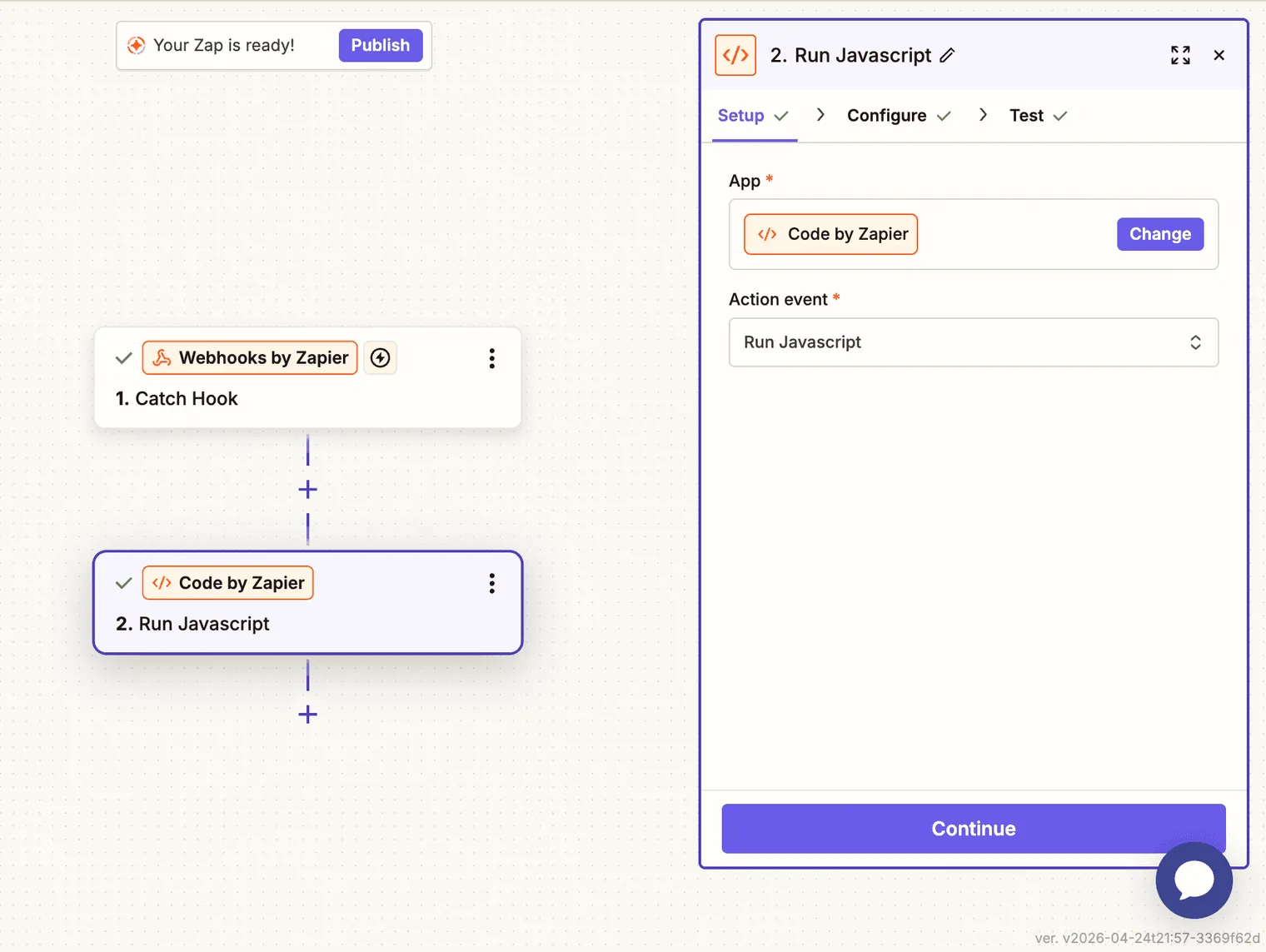
Add a new step and select Code by Zapier. Set the Action Event to Run JavaScript.
- Map your Input Data
In the Input Data section, you must create two specific keys and map them to your webhook data:
-
questionTypes: Map to 1. Responses Question Type -
values: Map to 1. Responses Value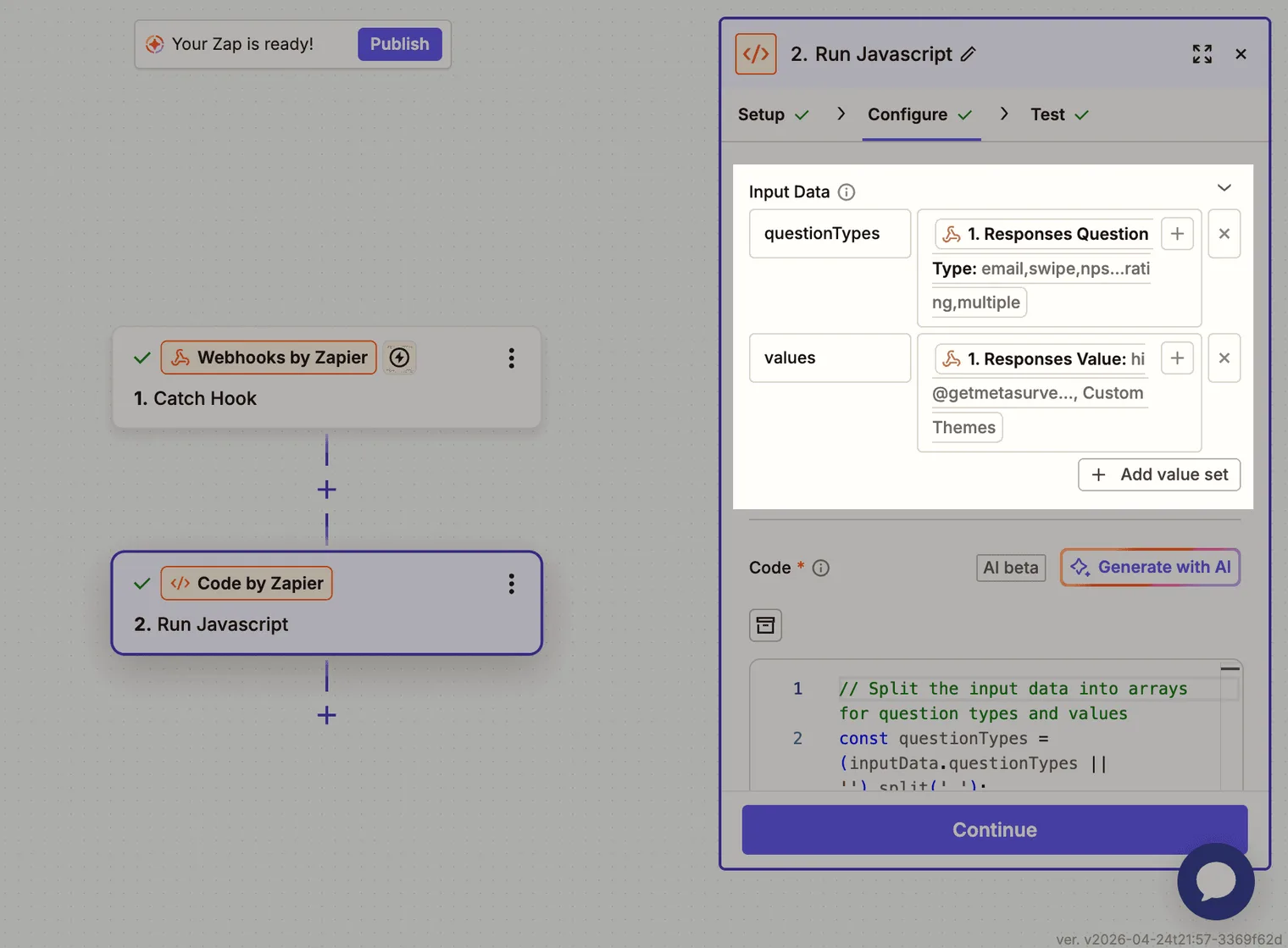
- Insert the Extraction Code
Copy and paste the following code into the Code box:
// Split the input data into arrays for question types and values
const questionTypes = (inputData.questionTypes || '').split(',');
const values = (inputData.values || '').split(',');

// Initialize an object to hold the extracted email
let emailOutput = { email: null };

// Loop through the question types to find the email value
for (let i = 0; i < questionTypes.length; i++) {
  if (questionTypes[i].trim() === 'email') {
    emailOutput.email = values[i] || null; // Assign value or null
    break; // Exit loop once found
  }
}

// Return the output object
return emailOutput;
- Test and Use
Click Test Action. Zapier will return a single email field. You can now map this field in your next steps, such as adding a lead to HubSpot, Brevo, or sending a personal “Thank You” email.