
Google Sheets
Here’s a step-by-step guide for connecting MetaSurvey with Google Sheets:
-
Open your survey and go to Connect.
-
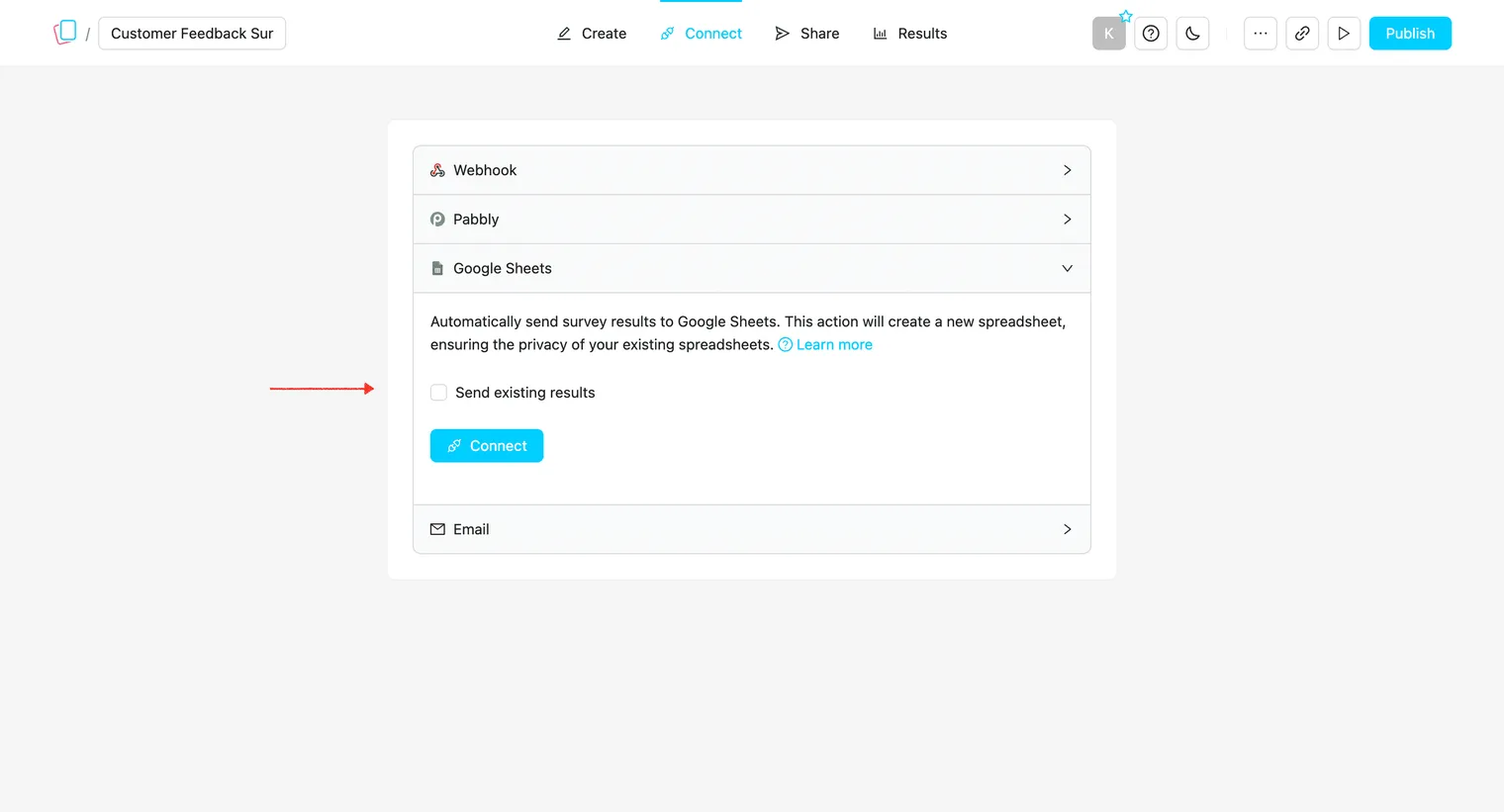
Select Google Sheets:
-
Click Connect. If you want to send existing survey results to a spreadsheet, ensure to check the Send existing results checkbox.
-
You’ll be prompted to authenticate your Google account. Grant access to MetaSurvey so it can create a spreadsheet. Upon successful authentication and access granting, MetaSurvey will automatically create a new spreadsheet. MetaSurvey will not have access to your other sheets, ensuring your privacy 🔒
-
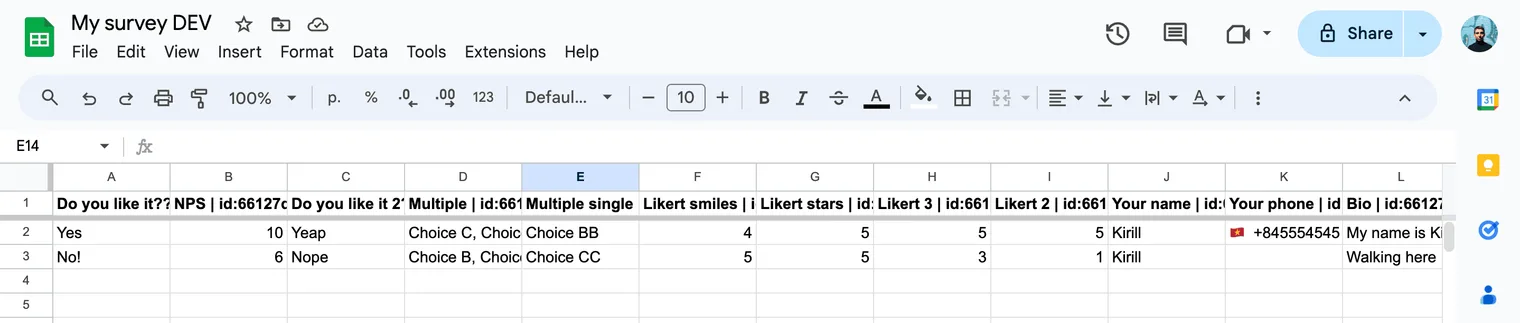
Try to complete a survey (not in a preview mode). All new survey responses will be automatically appended in a new row within the spreadsheet:
✅ Done!
Notes:
-
Note that columns containing question IDs should not be removed to maintain functionality.
-
If you decide to rename a question in your survey, the column name in the spreadsheet will be updated after the next submission.
-
If you add new questions to your survey, MetaSurvey will create new columns at the end of your last question column in the spreadsheet.