
Hidden Fields
Hidden fields are extra GET parameters in your survey URL.
You can add hidden fields to your survey to collect it with other responses. This helps you track who is completing your survey or where respondents are coming from.
How it works?
To get started, copy your survey link:
https://public.getmetasurvey.com/survey/62640bed1a3ba400127faff9
Then, add your desired GET parameters, like this: ?key1=value1&key2=value2
The final URL will look like this:
https://public.getmetasurvey.com/survey/62640bed1a3ba400127faff9?key1=value1&key2=value2
Examples:
- Tracking Campaigns: Add UTMs to your survey URL to monitor the effectiveness of different campaign channels:
https://public.getmetasurvey.com/survey/62640bed1a3ba400127faff9?utm_medium=email
- Identifying Respondents: Want to detect users who completed your survey? Include a unique identifier like user ID (UID) in the URL:
https://public.getmetasurvey.com/survey/62640bed1a3ba400127faff9?uid=79350
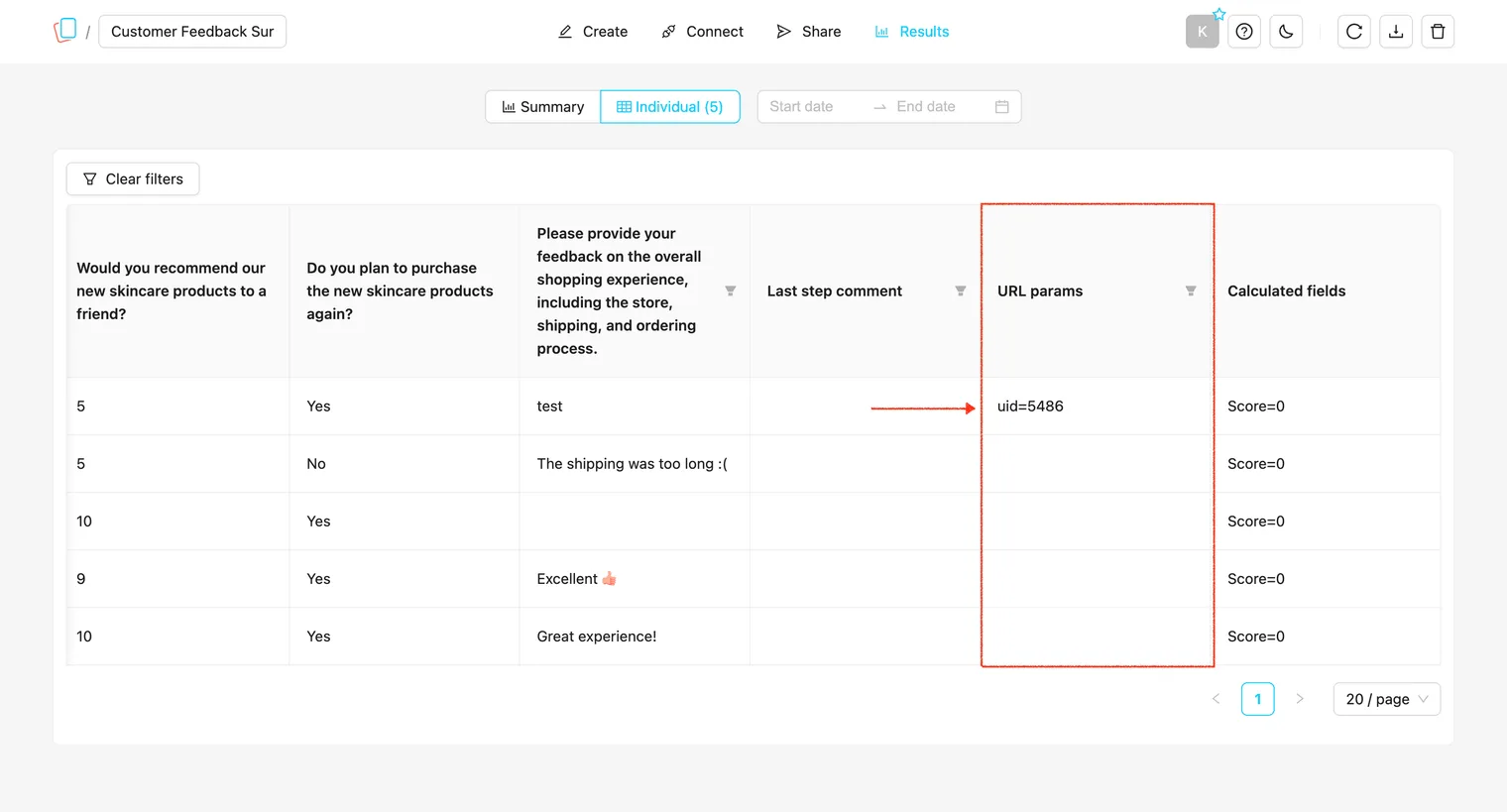
Hidden Fields in Analytics:
If hidden fields exist, they will be included in the URL params column:
Adding Hidden Fields to Embedded Surveys:
Hidden fields allow you to pass additional parameters (such as user IDs) into the survey. These parameters can be used for tracking or personalization.
Frame Embed
To add parameters to a Frame Embed, modify the <div> element by adding data-ms-params with a JSON string of your parameters:
<div data-ms-widget="SURVEY_ID"
  data-ms-params='{"userId":"user-07"}'
  style="width: 100%; height: 650px;"></div>
<script src="https://embed.getmetasurvey.com/embed.js"></script>
Full-Page Embed
The same approach applies to a Full-Page Embed:
<!DOCTYPE html>
<html lang="en">
  <head>
    <meta charset="utf-8" />
    <meta name="viewport" content="width=device-width, initial-scale=1" />
    <title>Survey</title>
    <style>*{margin:0;padding:0;} html,body,#metasurvey-widget{width:100%;height:100%;}</style>
  </head>
  <body>
    <div id="metasurvey-widget"
      data-ms-widget="SURVEY_ID"
      data-ms-params='{"userId":"user-07"}'></div>
    <script src="https://embed.getmetasurvey.com/embed.js"></script>
  </body>
</html>
Popup Embed - Side Button
For the Side Button Popup, add parameters using w.msParams:
<script type="text/javascript">
  (function (w, d) {
    w.surveyId = 'SURVEY_ID';
    w.buttonShape = 'text';
    w.buttonStyle = 'black';
    w.buttonPosition = 'right-middle';
    w.buttonType = 'side-button';
    w.buttonText = 'Leave feedback';
    w.buttonSize = 'lg';
    w.buttonClosable = 'false';
    w.buttonHasIcon = 'true';

    // Add hidden fields
    w.msParams = { userId: "user-07" };

    var s = d.createElement('script');
    s.src = 'https://embed.getmetasurvey.com/embed.js';
    s.async = true;
    var e = document.getElementsByTagName('script')[0];
    e.parentNode.insertBefore(s, e);
  })(window, document);
</script>
Popup Embed - CTA Button & Inline Button
For CTA Buttons and Inline Buttons, use the same data-ms-params approach as the Frame and Full-Page embeds:
<div data-ms-popup="SURVEY_ID"
  data-ms-button-text="Leave feedback"
  data-ms-button-type="cta"
  data-ms-button-style="black"
  data-ms-button-size="lg"
  data-ms-button-shape="text"
  data-ms-button-with-icon="true"
  data-ms-params='{"userId":"user-07"}'
  style="width: 100%; display: flex; box-sizing: border-box; justify-content: center; padding: 15px 0px;"></div>
<script src="https://embed.getmetasurvey.com/embed.js"></script>